
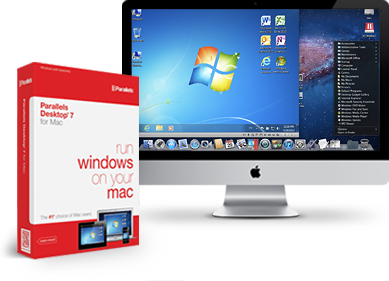
 Well, I have taken the plunge! When I are acquired the MacBook Air I did it with the intention of using the MacBook Air as my primary computer. After doing the research and looking at the kind of things I would be doing it became crystal clear that I would have to run Windows on the Mac. There are some programs, plus a couple of add-ins for Microsoft Outlook, that either aren’t available in the Mac format or the implementation is different enough that I was uncomfortable with the Mac option. The primary example of the later is Quicken. I went as far as purchasing Quicken for the Mac, installing it and converting the data file but in the end decided that it would not work and returned the Mac version. This was easy as Quicken for the Mac comes with a 60 day return option.
Having made the decision that it was necessary to run Windows on the Mac I had to determine which option would give me the flexibility that I wanted. While there are other options, the two that it came down to were; Boot Camp and Parallels. Boot Camp is free with the Mac operating system 10.6 or later, but has the disadvantage of requiring a re-boot to switch between the Mac operating system and Windows. Parallels, on the other hand, allows you to run Mac and Windows programs side-by-side and does not require a re-boot as you switch between programs in the two operating systems. This option also has the advantage of allowing you to drag and drop files between programs running in either Windows or Mac.
Once the decision on how to proceed was done, I settled down to the actual work of implementing the integration. I purchased a copy of Parallels at the Apple Store but as it turned out I could just as well have downloaded it from the net. When I ran the Parallels disk a pop-up suggested that a later version was available and did I want to download it. So I could have eliminated the trip to the Apple store and would have ended up in the same place. Installing Parallels on the Mac girl was a nonevent and once Parallels was installed I purchased the necessary copy of Windows through the Parallels system. Didn’t save any money but didn’t have to run the run around to acquire a copy of Windows. As an aside, early on in the process I found out was that it wasn’t going to be cheap. Parallels is $80 and Windows is another $200 bringing the out-of-pocket to almost $300 when you throw in a little sales-tax. However running Boot Camp is only $80 less as you still have to buy a copy of Windows. While Installing Parallels and Windows proceeded quite smooth it did take a little time to work out the nuances of working with the two operating systems running side-by-side on one machine. Having said that, all in all the entire process was pretty uneventful.
So far I have installed the Windows versions of; Microsoft Office, Evernote, Google Chrome, Skype, Dragon Naturally Speaking (by the way I am dictating this blog using Dragon Naturally Speaking on the Mac),Quicken and two Microsoft Outlook add-ins. One of the add-ins allows me to send e-mails to groups but they are individually addressed (I wrote about Send Individually in an earlier post) and the other, gSynict, synchronizes contacts and calendar entries between Outlook and Gmail . To this point, the only two issues that have poped up are (1) with the keyboard in Microsoft Outlook and (2) getting the print function working from the Windows side. In Outlook, the delete key does not delete the highlighted e-mail message and shift delete does not permanently the email. I haven’t taken the time yet to research if there is a way to reconfigure the keyboard but even if there isn’t the workaround is not a big issue. Printing across the network from the Windows side is an issue of getting the port issues straightened out.
It is important to remember that even though we are on a Mac we are in fact running Windows and therefore need to protect against viruses and malware. As luck would have it, I had one license left on my three-pack from Norton and installed Norton 360. I am a Norton fan but there are may other options including; McAfee, Kaspersky, AVG and many others. The important thing is that when you are running Windows on a Mac that you have something running to protect your files.
I suppose the question is what were the deciders between Boot Camp and Parallels? If one is only going to use a Windows program once in a while, Boot Camp is probably the way to go. This option has the advantage of saving the $80 cost for Parallels. However if, like me, you want the flexibility to move between programs in the two operating systems without having to reboot the computer, and be able to drag-and-drop files between the two operating systems, the additional $80 for Parallels is pretty easy to justify. Would I go out and buy a Mac so that I could run Windows on it – No. However, faced with deciding between a MacBook Air and one of the new ultralight Windows computer, the MacBook Air was one of the easiest decisions that I have made. The Windows computers might catch up but for right now the MacBook Air in my opinion is the way to go even with the proviso that I was going to have to run Windows in addition to the Mac operating system. This coming from someone that got his first PC the day the IBM PC came out in 1981 and has used a PC since.
The next project is to move data to the Cloud – probably iCloud. I want to be able to access the current version of all files from whatever machine I am using and not have to mess with making transfers, carrying USB drives or any of the other ways of keeping files current.
 Loren Berg's Blog
Loren:
Very, very informative and helpful! Gene
If you already own a Windows PC and are migrating to MAC, you can avoid the costs of a new Windows license by migrating you current windows OS to a parallels virtual machine. Parallels 8 does a fine job of migrating existing Windows envrionments. As to the delete key, to mimic the windows delete on a MAC, perform a “forward delete” (+).
Louis, Thanks for the tip. Loren